
Invite your staff
Put everyone in the shop on the same books. Staff take orders and collect payment on their own phones, and the owner sees everything in one place. Each invite takes under a minute.
If a staff member already used Bunchee to keep books for a shop of their own, the invite code won't work. The app refuses so their own shop's data isn't lost when they move to yours. Have them sign out and sign up with a different email, or invite that new email instead.
Inviting staff
-
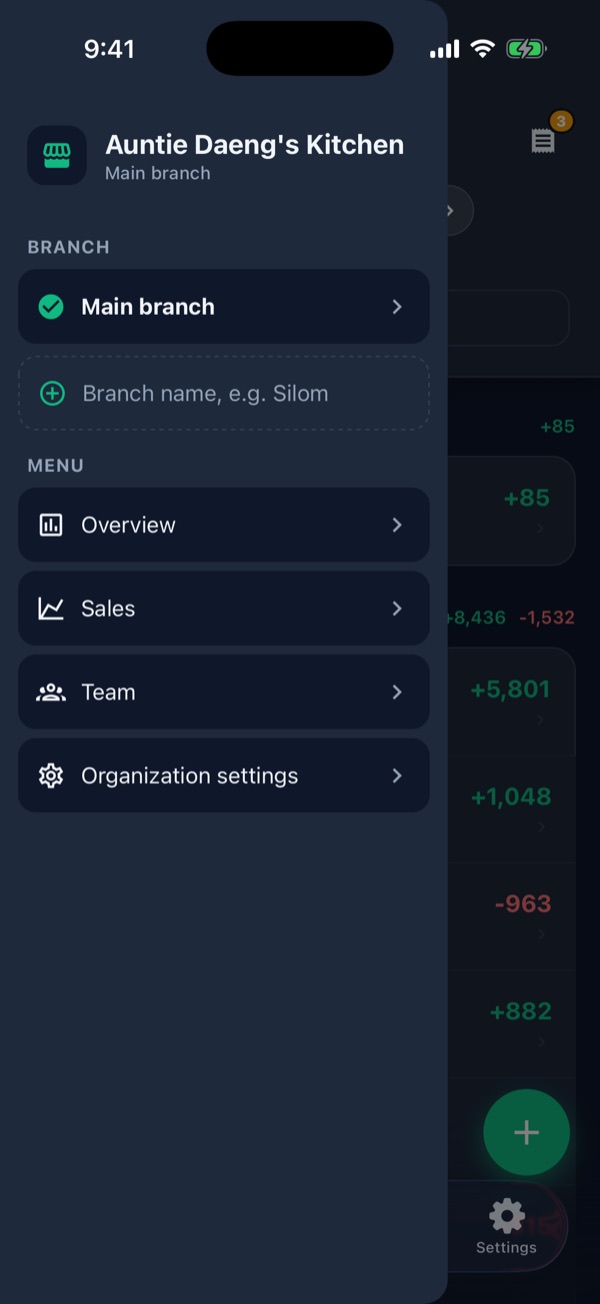
Open the side menu and tap “Team”
On Home, tap ☰ at the top left, then tap Team 1 (owners and managers only).
-
Tap “Invite member”
The Team screen lists everyone in the shop with their role. Tap Invite member 1 to create an invite. The ⋮ next to a name 2 changes their role or removes them.

-
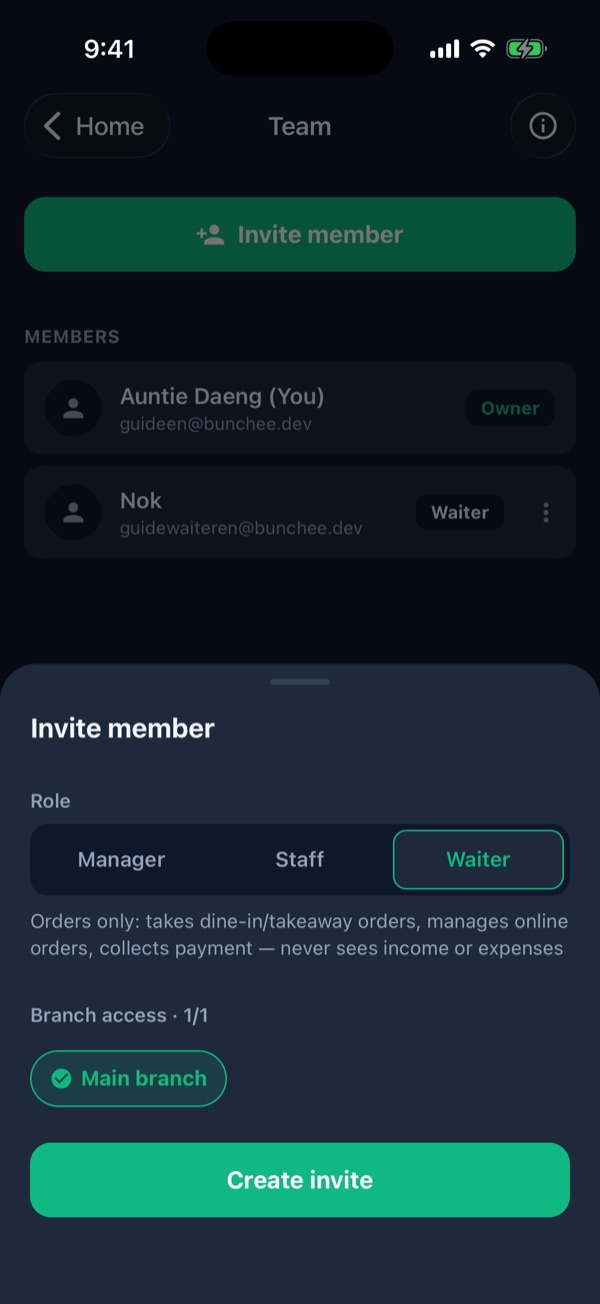
Choose a role and branch, then create the invite
Choose a role 1:
- Manager: can do almost everything, including inviting staff
- Staff: records income and expenses and takes orders
- Waiter: sees orders only, takes orders and collects payment, but never sees the shop's income or expenses
Pick the branch they can access 2, then tap Create invite 3.
-
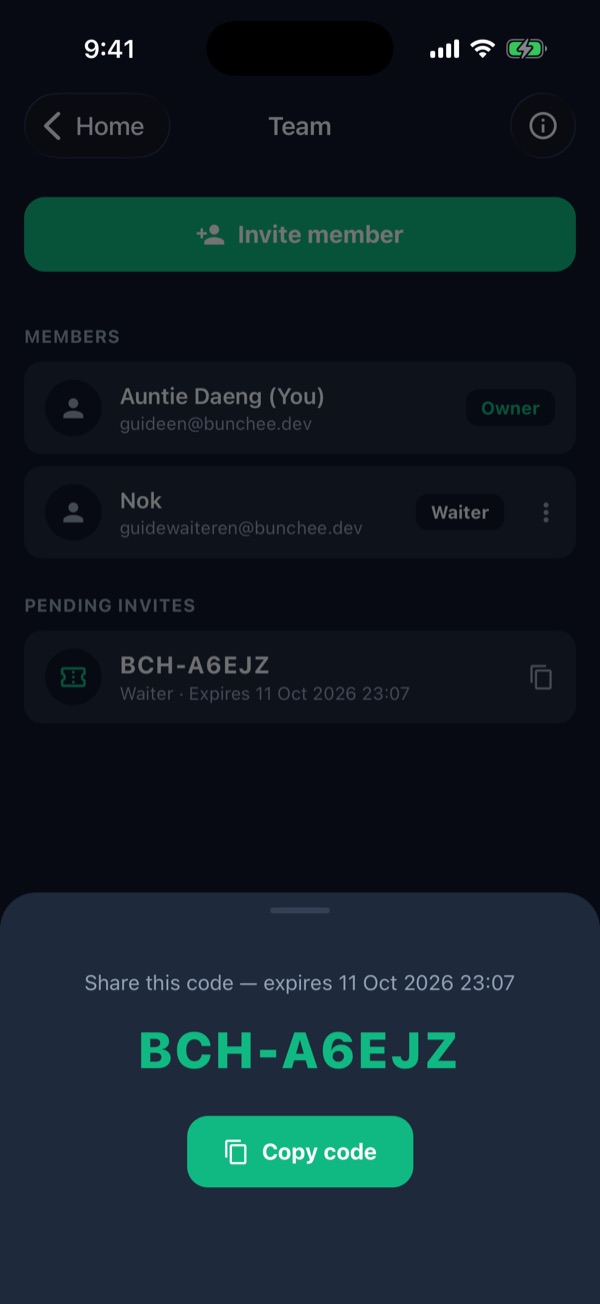
Send the code to your staff member
The app creates an invite code such as BCH-A6EJZ 1, valid for 7 days. Tap Copy code 2 and send it on LINE.
Your staff member downloads Bunchee, signs up for a new account, goes to Settings › Join with a code, enters the code and taps Join. They're in your shop straight away.
-
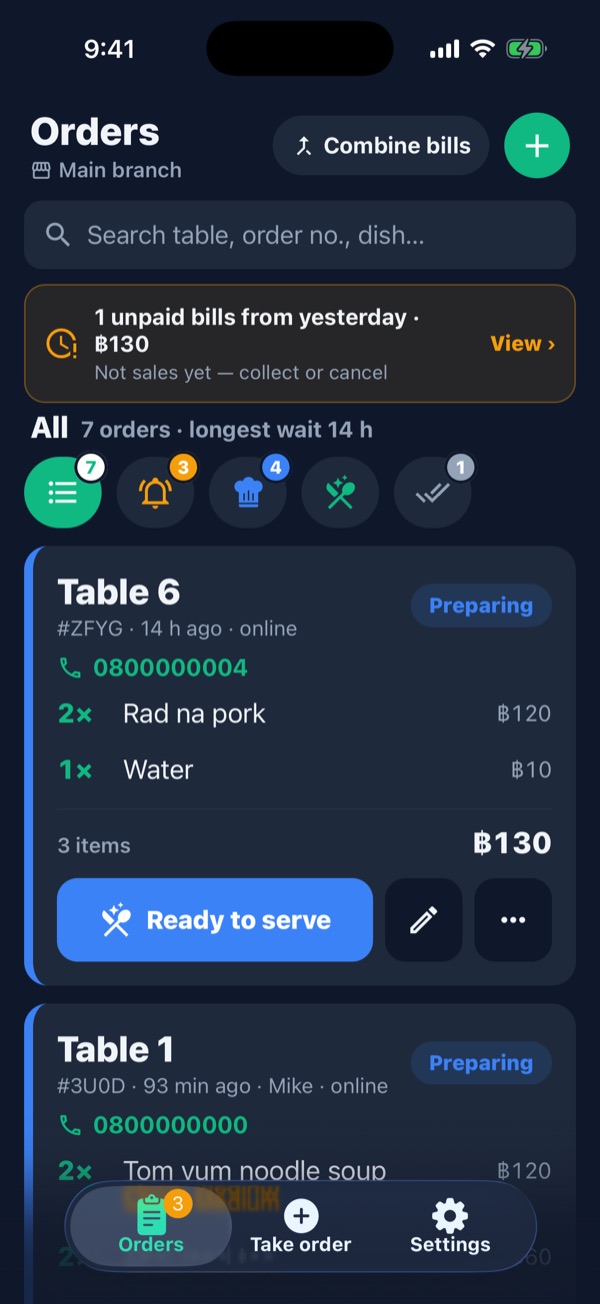
This is what a waiter sees
Waiters get a large-type app with just three tabs: Orders · Take order · Settings 3. No Home, Categories or Charts.
The filter buttons 1 split orders into New / Preparing / Ready to serve / Done. Each card has one big button for the next step 2: Accept → Ready to serve → Paid. When a waiter collects payment, the owner gets a “Bill paid” notification with the waiter's name.
Which role for whom
- Servers, cashiers, part-timers: Waiter. They take orders and collect payment but never see your profit, costs or expenses.
- Someone who helps with the books or buying: Staff.
- A partner or someone running the shop for you: Manager.
- Several branches? Pick the branches for each person when you invite them; they only see those branches.
- Someone left? Tap ⋮ next to their name on the Team screen and choose Remove from team.