
Take orders and get paid
Once your QR menu is published, customer orders arrive on the Orders screen in the app. This guide follows an order from the moment it pops up, through accepting and serving it, to getting paid, plus how staff can take orders for customers who don't scan.
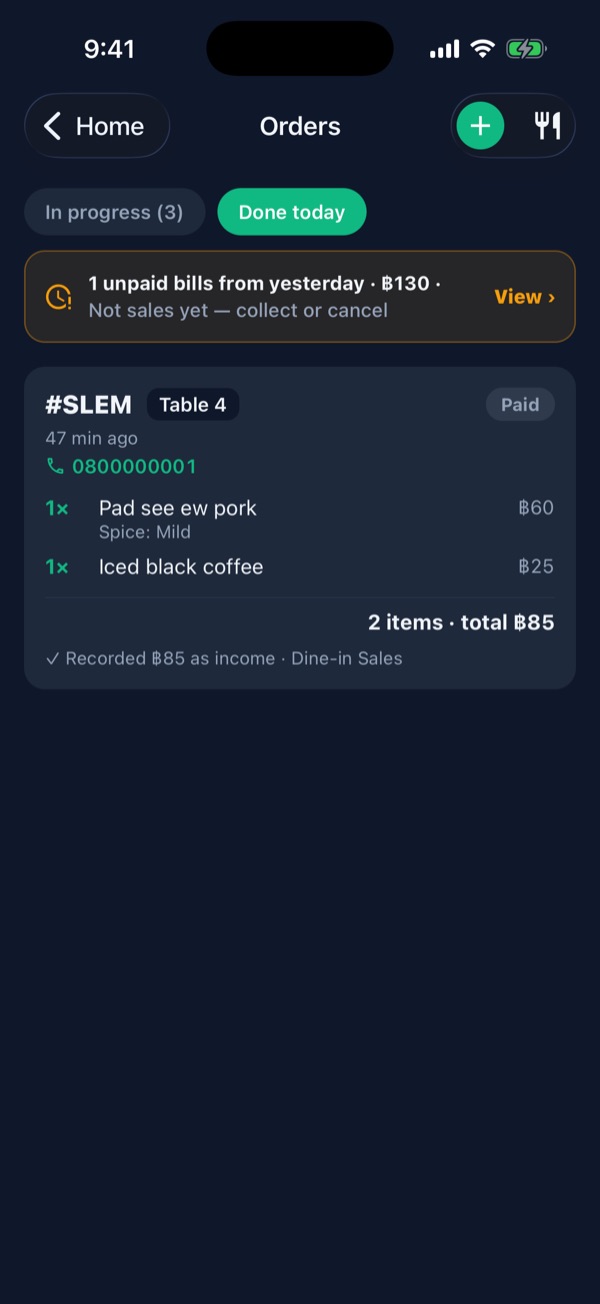
The app doesn't charge customers itself: they transfer to your PromptPay or pay cash. The money only goes into your books when someone taps “Paid”. Bills nobody marks stay open, don't count as sales, and show up in an amber “unpaid bills from yesterday” banner until you collect or cancel them.
Check the transfer in your banking app before tapping, and don't record order money again on the Income screen.
Customer orders
-
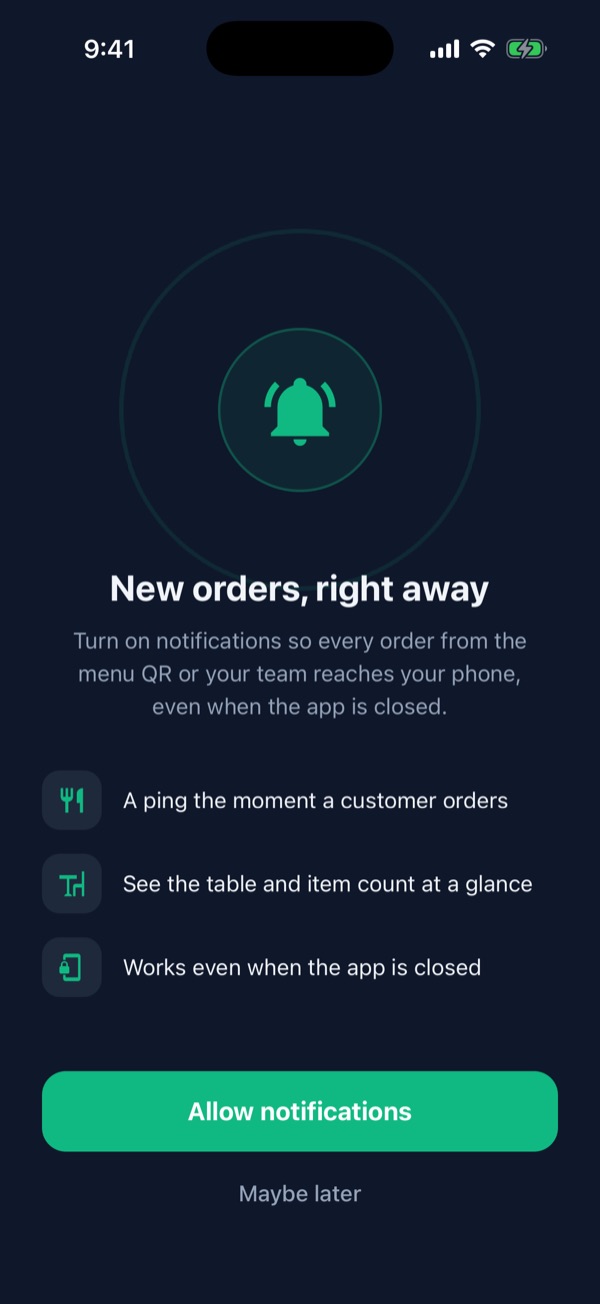
Tap “Allow notifications” when the app asks
Shops with the menu turned on are asked to allow notifications the first time they open the app. Tap Allow notifications 1, then Allow again in the iPhone/Android prompt.
From then on every new order pops up with its table and total, even when the app is closed. Turn it on for every phone that takes orders, owner and staff alike.
-
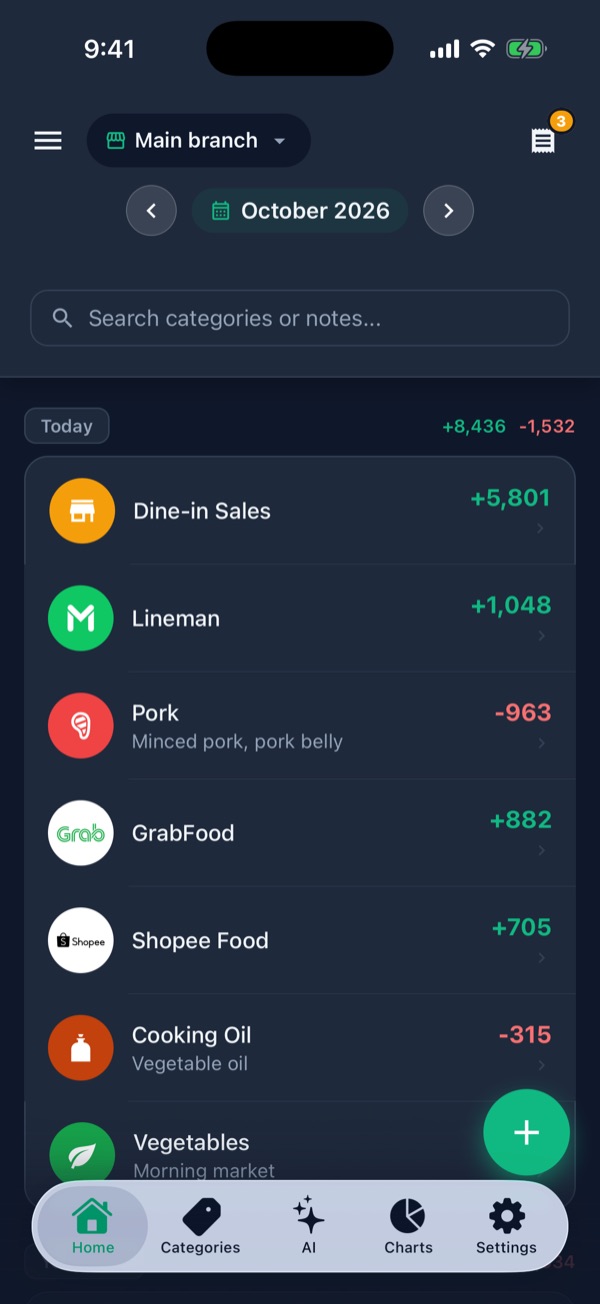
Orders waiting? The receipt icon shows a number
At the top right of Home, the receipt icon 1 shows how many new orders haven't been accepted yet. Tap it to open Orders (or tap the notification).
-
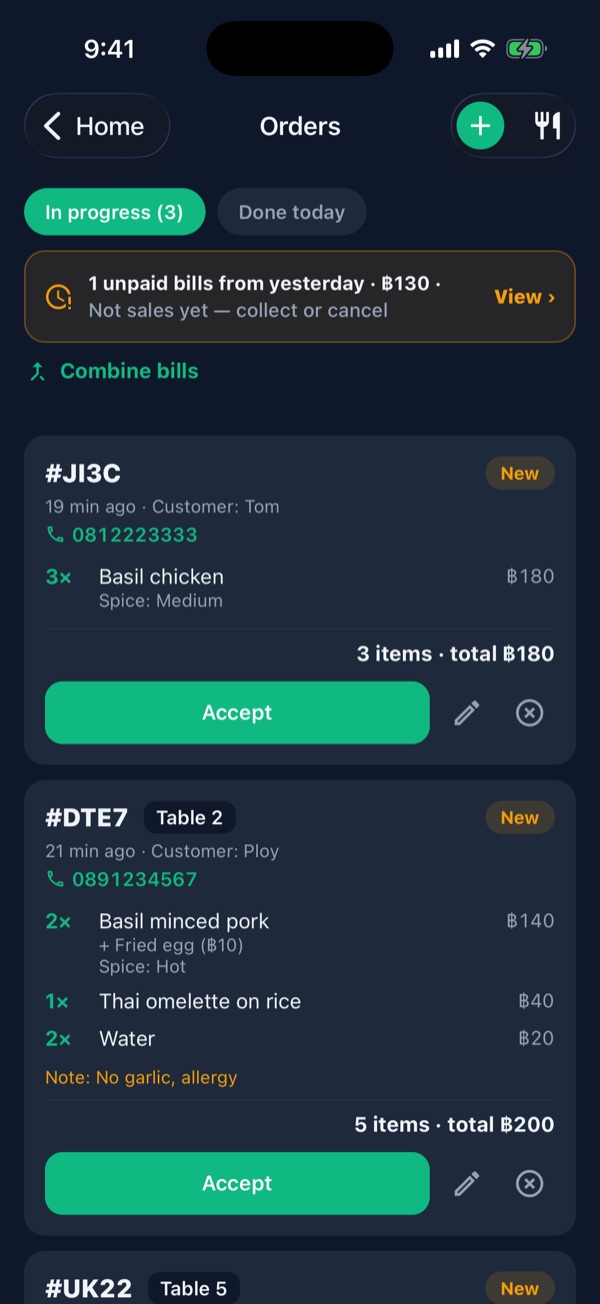
Accept new orders
New orders carry an amber New tag. The card shows the table, dishes, add-ons, spice level and the customer's note (e.g. a garlic allergy). Tap Accept 2 to send it to the kitchen.
The amber banner at the top 1 flags unpaid bills from yesterday. Combine bills 3 merges several orders from the same table into one bill.
-
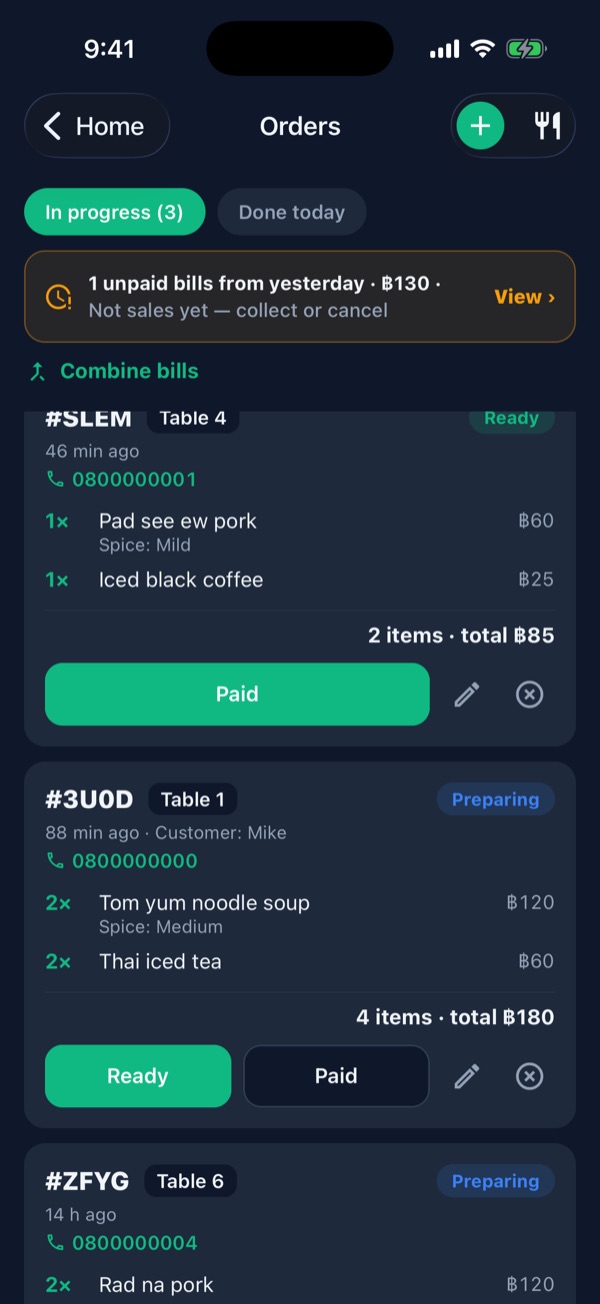
Food served? “Ready”. Money in? “Paid”
On an order being prepared, tap Ready 1 when it's served. When the customer pays (PromptPay scan or cash), tap Paid 2. Ready orders show just the green Paid button 3.
The pencil ✎ edits items or adds dishes; ⊗ cancels the order.
-
The money goes into your books by itself
Paid orders move to Done today with the line ✓ Recorded ฿85 as income · Dine-in Sales 1. That amount appears on Home and in Charts as income automatically, so don't record it again.
Staff taking orders in the app
-
Customer didn't scan? Tap + and pick a table
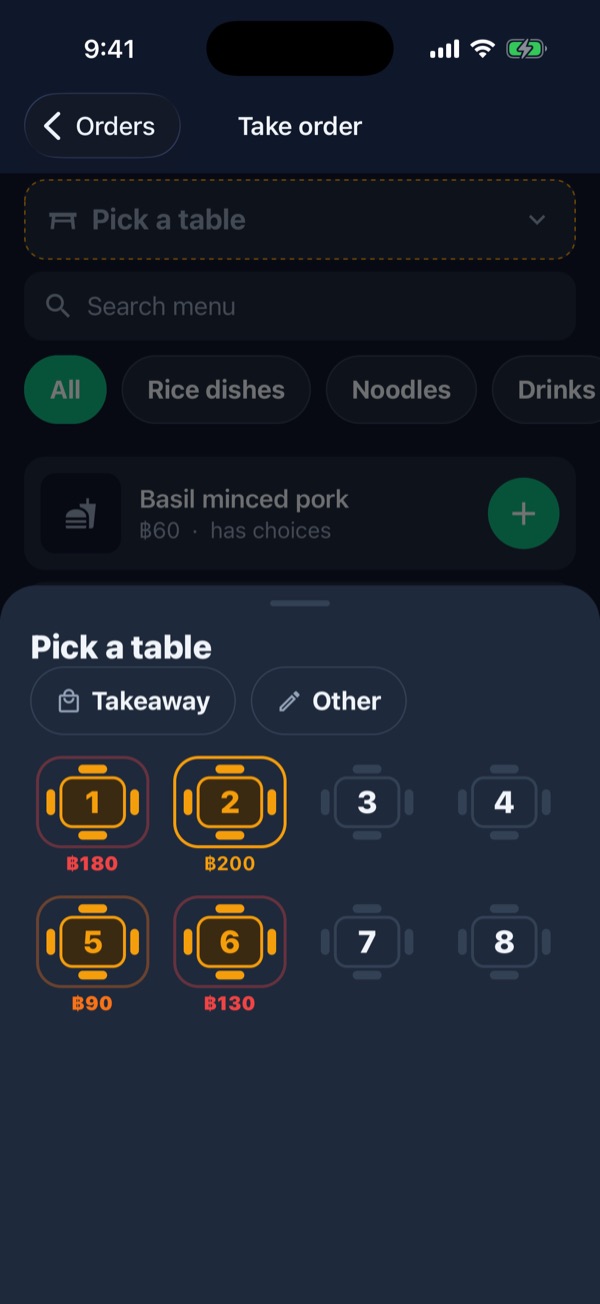
On Orders, tap the green + at the top right, then Pick a table to see the table map. Tables with an open bill get a coloured ring and their bill total:
- Light amber 2: just ordered (under 25 min)
- Orange: waiting 25–60 min
- Pulsing red 1 3: waiting over an hour, or an unpaid bill from yesterday
For takeaway tap Takeaway 4. Tap a table that already has a bill to add items or collect payment.
-
Pick the dish, spice level and add-ons
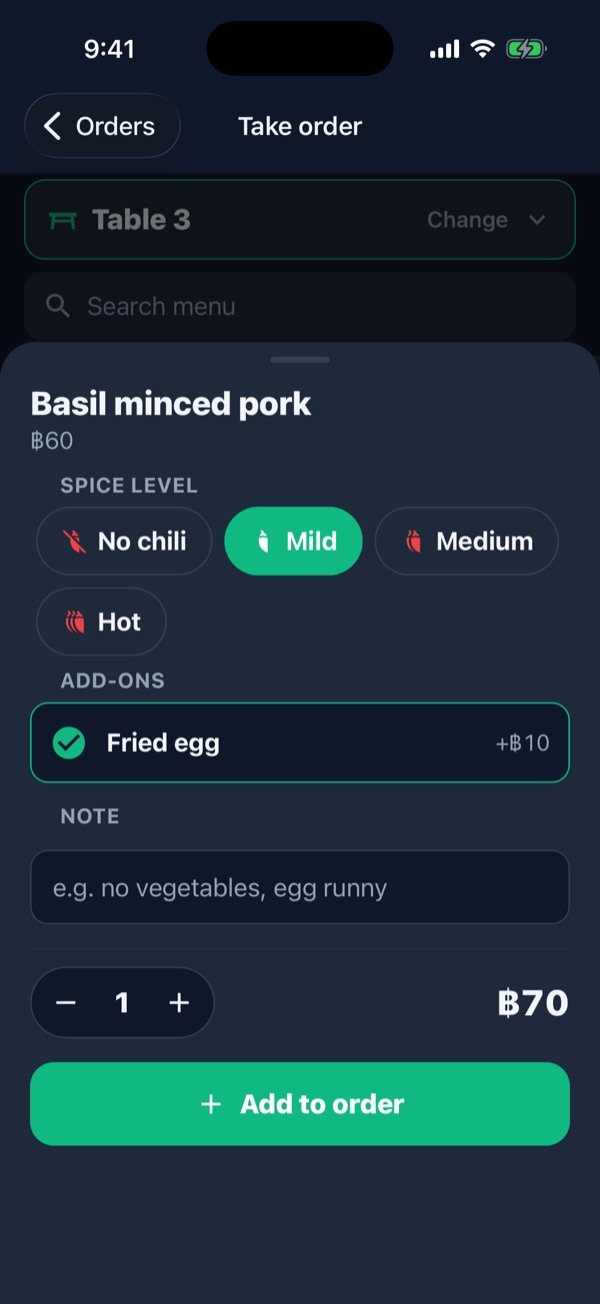
Tap + on a dish, choose the spice level 1, tick any add-ons 2, add a note if needed, then tap Add to order 3.
-
Check the order, then send it to the kitchen
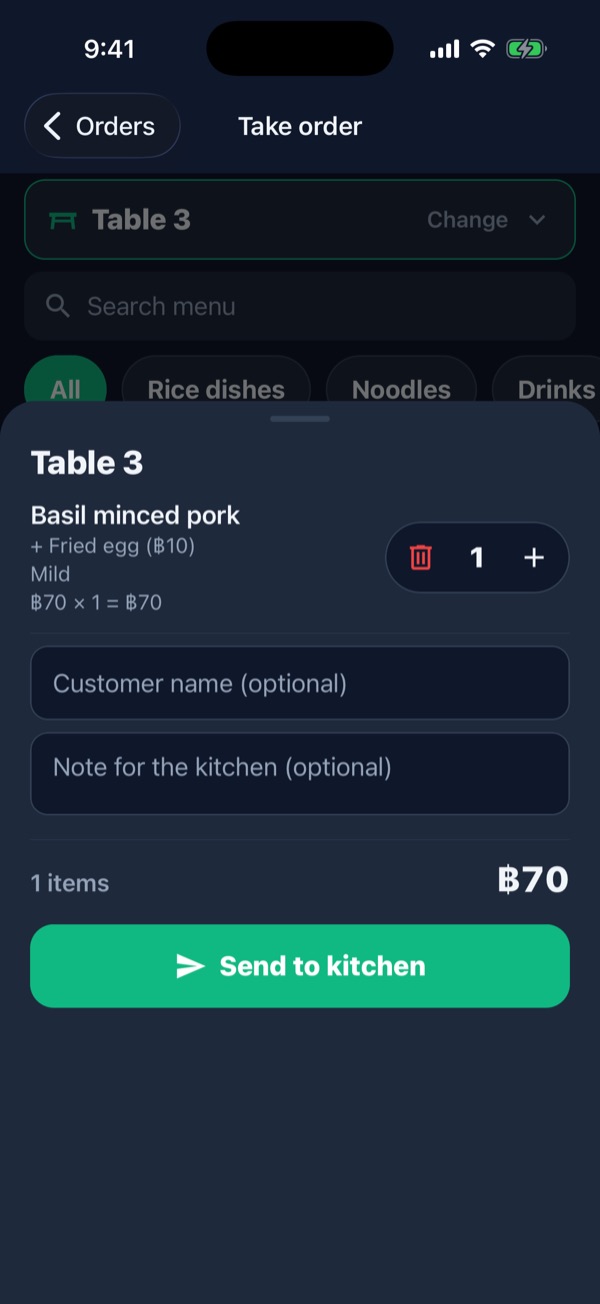
Tap Review in the bottom bar. Add the customer's name or a kitchen note if you like 1, then tap Send to kitchen 2. The order lands in Orders as Preparing straight away and notifies the other phones in the shop.
Tips for service
- Same table, several rounds? Tap Combine bills and pick that table's orders so you collect once.
- Customer changed their mind? Tap the pencil to change quantities or add dishes; the bill recalculates.
- Bills left open at closing? The amber banner stays until they're paid or cancelled. The shop's new day starts at 04:00, not midnight.
- Want staff to see only orders? Invite them with the Waiter role; see Guide 6.